Introduction
Every sports season, families receive schedules as PDF files. They look fine on paper, but they are difficult to use in everyday life.
Twinsburg High School has separate schedules for each sport and team. Varsity, junior varsity, and freshman teams may all have different files. If you follow several teams, you have to open multiple PDFs, find the correct dates, and then enter every event into your calendar by hand.
That creates several problems. Schedules can change. Events can overlap. Home and away locations are not always obvious. A time may be missing or listed as “TBD.” Special events, such as senior nights and school celebrations, may not appear on the regular team schedules at all.
I wanted a simpler way to answer a very ordinary question:
What Twinsburg sporting events are happening, and when?
The result is the Twinsburg Sports Calendar project. It takes the school’s PDF schedules and turns them into a combined digital calendar and an easy-to-read weekly report.
Instead of checking a stack of separate documents, a family can look at one calendar containing the events for every included team. The calendar can be subscribed to from a phone or computer, and it can be updated when new schedules become available.
View the Latest Reports
View the reports at Twinsburg Sports Calendar Reports. On this public webpage you can view and download the latest Twinsburg High School sports calendar reports. Previous reports will remain available as an archive.
Subscribe to the Calendar
You can also subscribe to the combined sports calendar in Apple Calendar, Google Calendar, Outlook, or another calendar application that supports iCalendar subscriptions. Use the following .ics subscription address:
https://tjpowellnet.github.io/Twinsburg-High-School-Sports-Calendar/THS-Sports.ics
Subscribing is preferable to downloading and importing the file. A subscription allows your calendar application to receive schedule changes when the published calendar is updated. Because each calendar application handles subscriptions differently, you need to copy the .ics link and select an option such as Add Subscription Calendar, New Calendar Subscription, or Subscribe from URL.
The 10-Day PDF Report
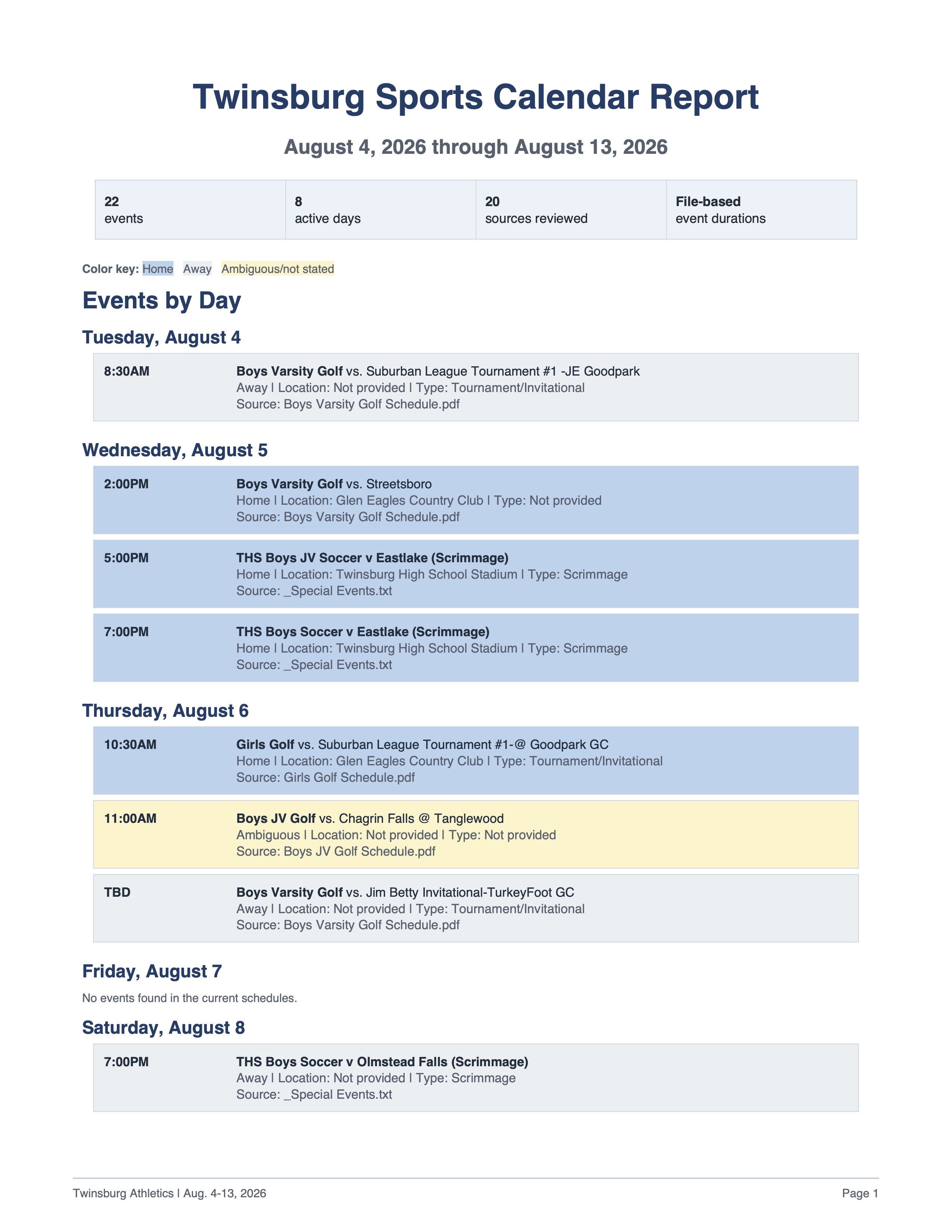
The 10-day PDF report is designed to answer a very specific need: what is happening soon, and how does it affect the next week and a half of family planning?
Instead of showing the entire season, the report focuses only on the current day plus the next nine days. This makes it easier to scan quickly without being overwhelmed by long-term scheduling details.
When someone opens the report, they are typically looking for a few key things:
1. What events are happening each day
Each date is clearly separated, and all events for that day are grouped together. This allows a reader to immediately see whether a day is busy or empty.
2. What time events start
Every scheduled event includes a start time when available. This helps families plan around school, work, and transportation.
3. Whether the event is home or away
Color coding makes this instantly visible:
- Blue indicates home events, which are typically easier to attend
- Light gray indicates away events, which may require travel
- Pale yellow indicates uncertainty when the location or status is unclear
This allows a reader to quickly understand not just what is happening, but where it is happening.
4. Where the event takes place
Each entry includes a location when it is known. This is especially important for away games, where the venue may not be obvious from the opponent name alone.
5. Which team and sport is involved
The report always includes the team name and sport so that multiple events on the same day can be distinguished easily.
6. Special or unusual events
If a special event (such as senior night or a school-wide celebration) falls within the 10-day window, it appears alongside regular games. This ensures important non-game events are not missed.
How to Subscribe to the Calendar
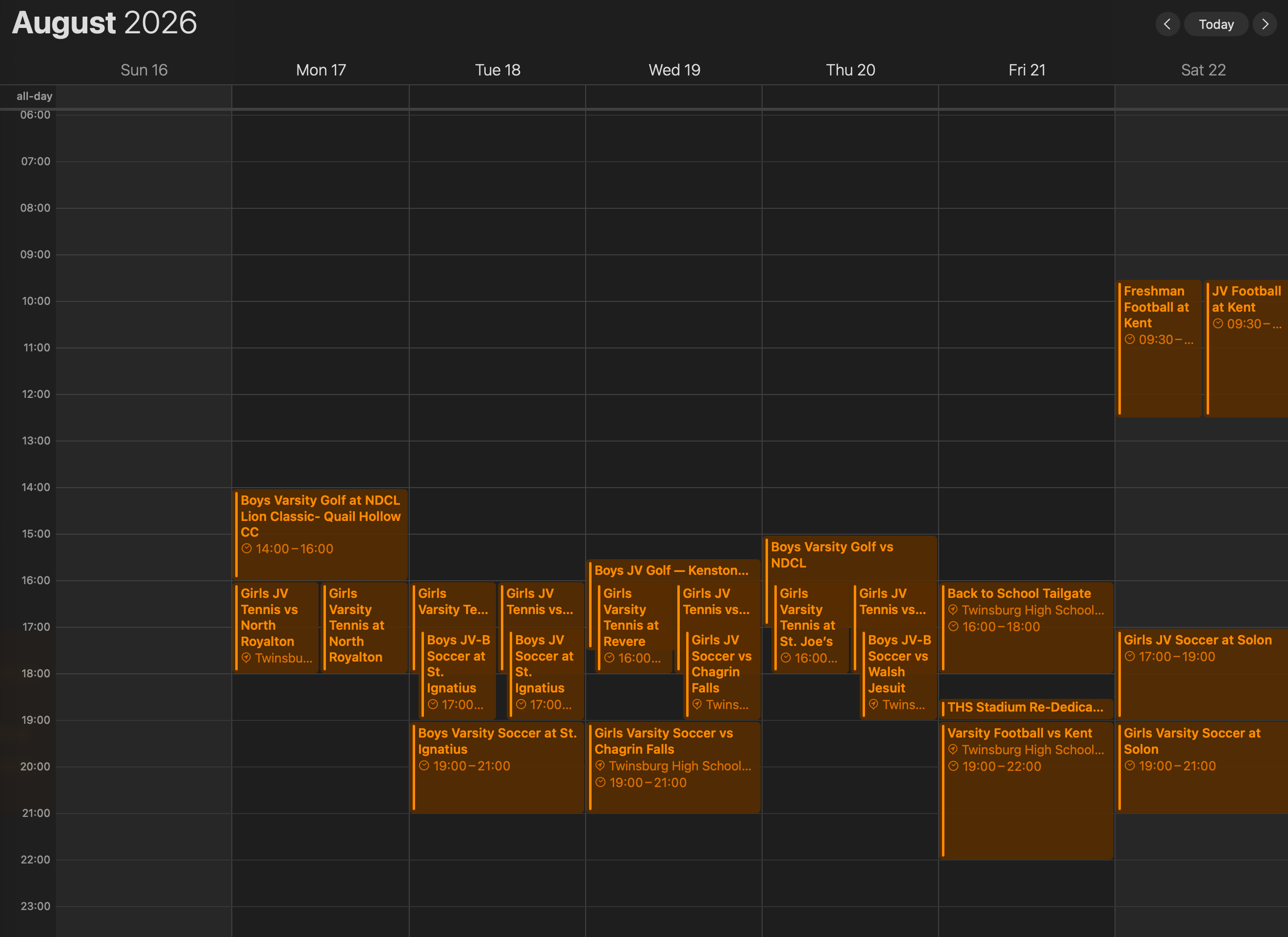
To use the calendar in a personal device or application, you subscribe to the published ICS feed rather than downloading a static file.
Once subscribed, the calendar will automatically update when the underlying file is regenerated and refreshed on the server. Most calendar applications check for updates periodically, so changes to game times, locations, or cancellations will appear without any manual re-entry.
In Apple Calendar, the subscribed feed appears as a separate calendar that can be toggled on or off. Events from all included sports are merged into your normal calendar view, making it easy to see school activities alongside personal appointments. Color coding and event details (such as location and opponent) remain visible, helping families quickly understand what is happening each day.
What the Project Produces
The system creates two main outputs.
The first is a combined calendar file named THS-Sports.ics. An ICS file is a standard calendar format supported by Apple Calendar, Google Calendar, Outlook, and many other calendar applications.
The second is a printable 10-day schedule report. It starts with the current date and includes the following nine days. Each event shows its time, team, opponent, home-or-away status, location, event type, and original source schedule.
It also checks whether two events overlap. If one is at home and another is away, the report warns when travel would make it difficult to attend both events in full.
How It Works
The project is built around two Python programs.
The calendar generator processes all of the schedule PDFs in the “Current Schedules” folder. It extracts the text from each PDF and searches for rows containing a date, an opponent or event name, and a start time.
Each parsed event is converted into a structured record containing:
- The source schedule
- The team name
- The event date
- The start time
- The opponent
- The home-or-away status
- The expected duration
- The location, when available
The program combines these records and writes them in the iCalendar format used by calendar applications.
A second Python program uses the same event data to build the 10-day PDF report. This avoids maintaining two separate sets of schedule information. The calendar and the report are generated from the same underlying data and rules.
Handling Imperfect PDF Files
Extracting information from a PDF is not as straightforward as reading a spreadsheet.
A PDF is primarily designed to preserve how a document looks. It does not necessarily store its text in a clean table. A schedule that appears to have neat columns on the screen may produce extracted text with unusual spacing, wrapped lines, repeated headings, or disconnected pieces of information.
The system therefore validates every newly extracted schedule before replacing the previous version. If a PDF cannot be read or does not produce any recognizable dated events, the project keeps the last valid extracted copy.
This cache is important. A temporarily damaged or unreadable PDF should not cause an entire team’s events to disappear from the calendar.
The project also removes cached schedules when their corresponding PDFs are intentionally removed. This prevents schedules that are no longer current from continuing to contribute old events.
Determining Home and Away Events
Most schedule rows use a leading @ symbol to identify an away event. The parser recognizes that symbol and records the event as away. Events without it are generally treated as home events.
Golf requires special handling because an @ may appear between an opponent and the name of a course. In that situation, the symbol does not clearly indicate whether the event is home or away. Rather than guessing, the program labels the event as ambiguous.
Home locations are stored in a separate, editable configuration file. For example:
- Football and soccer use Twinsburg High School Stadium
- Volleyball uses the Twinsburg High School Gym
- Golf uses Glen Eagles Country Club
- Tennis uses the Twinsburg High School Tennis Courts
Keeping these locations outside the program makes them easier to update and allows each sport to use its actual home venue instead of a generic school address.
Event Durations and Conflict Detection
Most paper schedules provide a start time but not an ending time. The project needs an estimated end time to display events correctly and detect schedule conflicts.
The duration rules are stored in another editable file. The current rules include:
- Football: 180 minutes
- Soccer: 120 minutes
- Volleyball: 60 minutes
- Basketball: 90 minutes
- Other events: 120 minutes by default
Special events can provide their own exact duration.
The report calculates an expected ending time for every timed event. It then compares events occurring on the same day. Two events conflict when one begins before the other is expected to end.
This does not mean the school scheduled something incorrectly. Multiple teams often play at the same time. The warning is meant for families, photographers, administrators, and other people who may want to attend more than one event.
Supporting Special Events
Not everything belongs in a team schedule. Tailgates, senior nights, youth recognition events, stadium ceremonies, and similar activities may need to appear alongside regular contests.
The project includes a separate special-events file for these additions. Each entry can specify its own date, time, duration, title, and location.
These events go through the same calendar and reporting process as the events extracted from the PDFs. If a special event is marked as home and contains the name of a sport, the system uses that sport’s configured home location.
Creating Stable Calendar Events
One subtle technical problem is preventing duplicate events.
Every event in an ICS calendar needs a unique identifier. If that identifier changes whenever an event’s date or time changes, a subscribed calendar may add a second event instead of updating the original one.
This project creates each identifier from relatively stable information:
- The source schedule
- The team name
- The opponent or event name
- The occurrence number when similar events appear more than once
The date and time are intentionally left out of the identifier. If a game is moved from Tuesday to Wednesday, the calendar application can recognize it as the same event and update it instead of creating a duplicate.
The identifier is converted into a SHA-256 hash, producing a short and consistent value that works well in an ICS file.
Calendar Compatibility
The generated file follows the iCalendar standard. Timed events use the America/New_York time zone, while events with a start time of “TBD” become all-day entries with an explanatory note.
The generator also:
- Escapes commas, semicolons, line breaks, and backslashes as required by the format
- Folds long lines at the iCalendar limit of 75 UTF-8 bytes
- Adds start and expected end times
- Includes the original PDF name in the event notes
- Suggests that calendar applications refresh the feed every six hours
Once the ICS file is hosted at a stable web address, users can subscribe to it. Future versions can replace the file at that same address, allowing calendar applications to retrieve the changes automatically.
Making It Easy to Run
The project includes simple Mac command files for its two main tasks.
One command updates the combined calendar. The other produces the latest 10-day PDF report. These can be opened like ordinary files, so someone does not need to know Python or use a programming environment to run the system.
During an update, the command checks that the required files exist, runs the appropriate program, and records any errors. After a successful run, it removes temporary rendering files, diagnostic logs, and other disposable files. If something fails, it keeps those materials so the problem can be investigated.
Why This Project Matters
This began as a practical response to a small but persistent problem: important schedule information was available, but it was not available in the form people actually needed.
The original PDFs are still the source of truth. This project does not replace them. It turns their information into tools that are easier to search, subscribe to, print, and use.
The most valuable part of the project is not any individual technical feature. It is the reduction in effort for the people trying to follow their school’s teams.
Instead of repeatedly checking numerous PDF files and manually copying dates into a calendar, families can use one combined schedule. When the source schedules change, the calendar and report can be generated again.
It is a good example of how a modest amount of automation can make ordinary information much more useful.

